

Description
Download River Past Screen Recorder – Free Screen Capture & Video Recording Tool for Windows
Looking for a reliable and lightweight screen recording tool? River Past Screen Recorder is a trusted, free trial software designed for Windows users who want to capture video from their screen with ease. Whether you're creating tutorials, recording gameplay, or archiving online meetings, this versatile tool delivers solid performance without bogging down your system. Despite being released in 2008, it remains a favorite among users in the United States, India, and Canada for its simplicity and efficiency. With over 39,000 downloads since 2007, River Past Screen Recorder has earned a loyal following for its ability to record full-screen or custom window content with minimal configuration. It supports various video formats and offers basic editing features, making it a go-to choice for beginners and casual users alike. While the latest update was in 2008, its lightweight nature ensures compatibility with older systems, including Windows 98 and later. If you're searching for a secure, easy-to-use screen recorder that doesn’t require high-end specs, River Past Screen Recorder is a strong contender worth downloading today.
Key Features of River Past Screen Recorder
One of the standout aspects of River Past Screen Recorder is its user-friendly interface, which makes it accessible even for those with minimal technical experience. The software allows you to record your entire screen, a specific window, or a custom-defined area with just a few clicks. This flexibility is ideal for users who need to capture different types of content—be it a full tutorial, a game session, or a portion of a video conference. The tool supports multiple output formats, including AVI, WMV, and MPEG, giving you options depending on your intended use. Whether you're sharing videos online or storing them locally, compatibility is never an issue.
Another notable feature is its minimal system resource usage. Unlike many modern screen recorders that consume significant CPU and RAM, River Past Screen Recorder operates efficiently, making it perfect for older computers or systems with limited processing power. This lightweight design also means faster startup times and smoother recording sessions without lag. The software also includes basic editing tools such as trimming, cropping, and adding watermarks—features that enhance the final output without requiring external video editing software.
Additionally, River Past Screen Recorder supports audio capture from your microphone, system audio, or both, ensuring that your recordings include clear voiceovers and background sounds. The recording quality can be adjusted manually, allowing you to balance file size and clarity based on your needs. With a straightforward setup process and intuitive controls, this tool is ideal for educators, content creators, and remote workers who need a dependable solution for screen capture without the complexity of professional-grade software.
Installation & Usage Guide for River Past Screen Recorder
Getting started with River Past Screen Recorder is quick and hassle-free. Begin by downloading the software from a trusted source. Since it’s a trial version, you’ll have access to all core features during the evaluation period. Once downloaded, run the installer and follow the on-screen prompts. The installation process is lightweight and typically completes in under a minute. No additional drivers or system configurations are required, which is a major plus for users who prefer a no-frills setup.
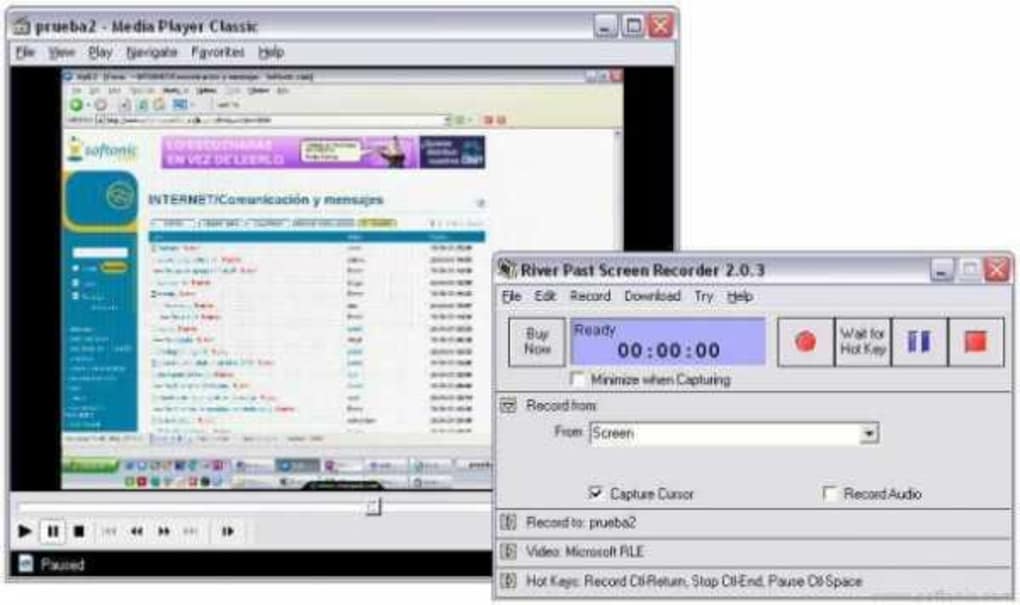
After installation, launch the application. The main interface is clean and well-organized, featuring a central recording button, a preview window, and simple dropdown menus for selecting recording areas and audio sources. To start recording, choose your preferred mode: full screen, window, or custom region. You can also select whether to capture system audio, microphone input, or both. Once everything is set, click the red record button to begin. The software will display a countdown and start capturing in real time.
When you’re done, click the stop button. The recording will automatically be saved to your chosen folder, and you can immediately preview or edit the file. The built-in editing tools let you trim unwanted sections, crop the frame, or add a watermark. For advanced users, the software also supports exporting to different formats, which is helpful when preparing content for platforms like YouTube or Vimeo. The entire process—from installation to final export—is intuitive and efficient, making it ideal for both beginners and intermediate users.
Compatibility & System Requirements
River Past Screen Recorder is designed to run on a wide range of Windows operating systems, making it one of the most accessible screen recording tools for older and low-spec machines. It is compatible with Windows 98, Windows ME, Windows 2000, Windows XP, and Windows Vista, ensuring broad support across legacy systems. This level of backward compatibility is rare in today’s software landscape, especially for screen recording tools that often require modern OS versions.
Despite its age, the software remains functional on newer Windows versions, including Windows 10 and Windows 11, thanks to its lightweight architecture and minimal system demands. However, users should be aware that since the last update was in 2008, there may be occasional compatibility issues with newer hardware drivers or security protocols. For best results, run the program in compatibility mode if needed. The software does not require administrator privileges for basic recording tasks, which enhances security and ease of use.
System requirements are modest: a minimum of 128 MB RAM, 20 MB of free disk space, and a processor capable of handling video encoding. These low requirements mean it can run smoothly on older laptops, netbooks, or even older desktops. It’s also worth noting that the software is only available in English, which may limit accessibility for non-English speakers. Nevertheless, its simplicity and reliability make it a top choice for users who prioritize functionality over multilingual support.
Pros and Cons of River Past Screen Recorder
- Pros:
- Lightweight and fast—runs smoothly on older systems
- Supports multiple video formats (AVI, WMV, MPEG)
- Simple, intuitive interface suitable for beginners
- Records system audio, microphone, or both
- Includes basic editing tools (trim, crop, watermark)
- Free trial available with full feature access
- Minimal system resource usage during recording
- Cons:
- Last update was in 2008—no recent improvements or bug fixes
- Only available in English
- Limited customization options compared to modern tools
- May face compatibility issues with newer Windows versions
- No built-in video compression or cloud sharing features
Frequently Asked Questions (FAQ)
Can I use River Past Screen Recorder on Windows 10 or Windows 11?
Yes, River Past Screen Recorder can run on Windows 10 and Windows 11, though it may require running in compatibility mode for optimal performance. While the software was last updated in 2008, its lightweight design allows it to function on modern systems, especially for basic recording tasks.
Is River Past Screen Recorder free to download and use?
Yes, the software is available as a free trial. You can download and use all features for a limited time. After the trial period, you’ll need to purchase a license to continue using it. The trial version is fully functional, so you can test it thoroughly before deciding.
What video formats does River Past Screen Recorder support?
The software supports several common video formats, including AVI, WMV, and MPEG. These formats are widely supported across devices and platforms, making it easy to share your recordings without conversion.
Can I record audio along with my screen?
Yes, River Past Screen Recorder allows you to record both system audio and microphone input simultaneously. This is ideal for creating voice-over tutorials, online lectures, or gameplay commentary.
Does River Past Screen Recorder work on older Windows systems?
Yes, it is compatible with Windows 98, ME, 2000, XP, and Vista. This makes it one of the few screen recording tools that still function on legacy systems, which is a major advantage for users with older hardware.
Final Verdict: Is River Past Screen Recorder Worth It?
Despite its age, River Past Screen Recorder remains a solid choice for users seeking a simple, lightweight screen recording tool. Its minimal system requirements, intuitive interface, and support for multiple formats make it ideal for beginners, educators, and those working with older computers. While it lacks modern features like cloud integration or advanced compression, its core functionality is reliable and effective.
If you're looking for a free, secure, and easy-to-use screen recorder that doesn’t require high-end hardware, this software is definitely worth downloading. It’s especially beneficial for users in India, the United States, and Canada, where it continues to be popular. For a no-frills recording experience that gets the job done, River Past Screen Recorder delivers value where it matters most—performance and simplicity.
Download River Past Screen Recorder today and start capturing your screen with confidence!
Guides & Tutorials for River Past Screen Recorder
How to install River Past Screen Recorder
- Click the Preview / Download button above.
- Once redirected, accept the terms and click Install.
- Wait for the River Past Screen Recorder download to finish on your device.
How to use River Past Screen Recorder
This software is primarily used for its core features described above. Open the app after installation to explore its capabilities.
User Reviews for River Past Screen Recorder 0
No reviews found





